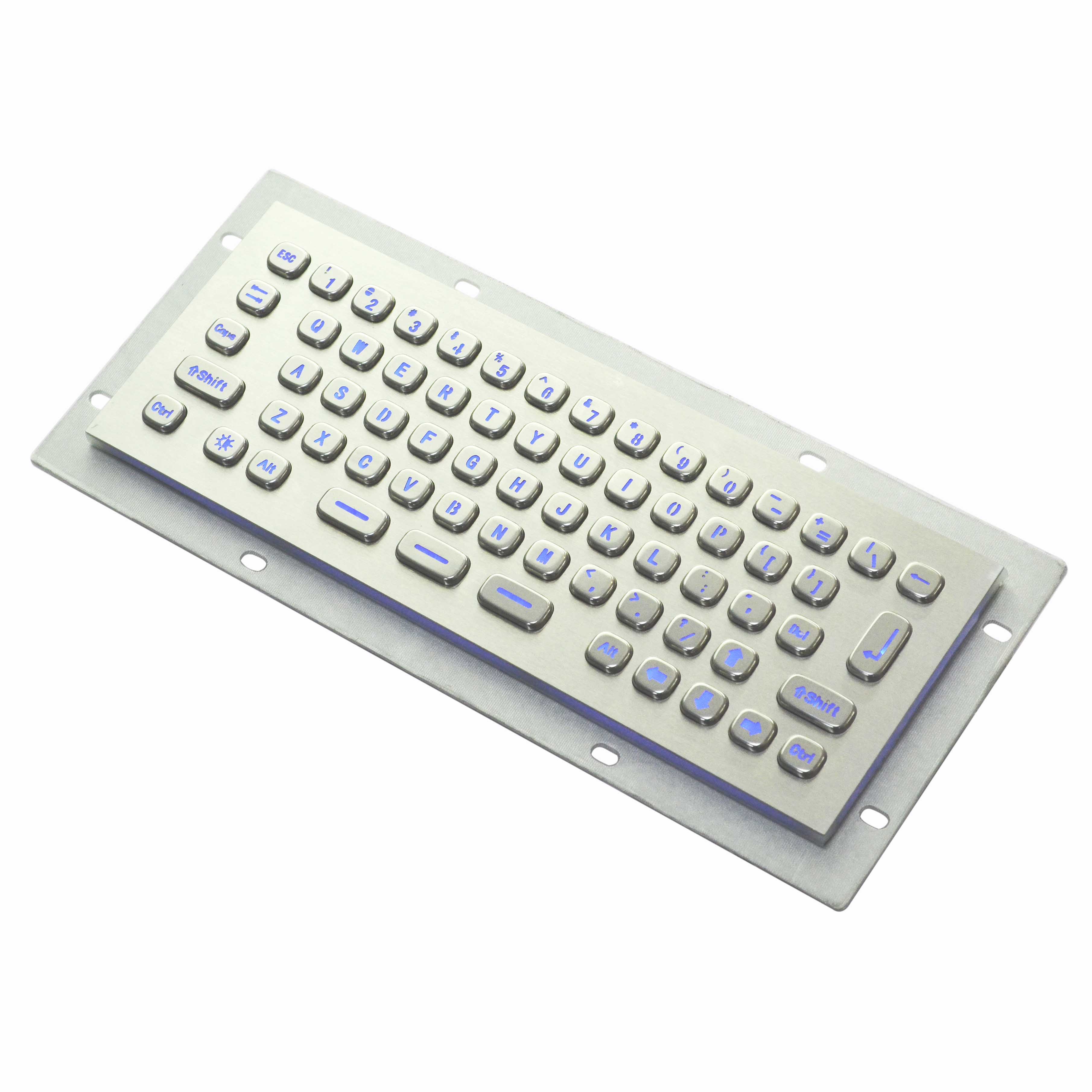
The difference between desktop keyboard with touchpad and trackball

Desktop keyboards with touchpads and keyboards with trackballs both belong to input tools of integrated pointer devices, but they have significant differences in operation methods, applicable scenarios and design features. The following is a detailed comparison:
1.Operation mode and accuracy
Desktop keyboards with touchpad
- Sliding operation: Control the cursor by sliding your finger on the touch panel. It supports multi-touch (such as two-finger scrolling and zooming).
- Gesture support: Customizable gesture operations (such as switching applications with three fingers) are available, but there is a learning cost.
The precision depends on the surface: A smooth surface makes operation smoother, but the sensitivity may be affected by hand sweat or stains.
Desktop keyboards with trackball
- The ball control: Roll the fixed ball with your fingers or palm to move the cursor. There is no need to move your wrist.
- High positioning accuracy: Suitable for fine operations (such as CAD design), but needs to adapt to the resistance of the sphere.
2. Applicable scenarios and ergonomics
Desktop keyboards with touchpad
- Portable scenarios: Commonly found in compact keyboards (such as Apple Magic Keyboard), suitable for mobile office work.
- Light office work: Basic operations such as web browsing and document editing are more convenient.
Wrist movement is frequent: fingers need to be moved frequently, and prolonged use may cause fatigue.
Desktop keyboards with trackball
- Professional fields: Commonly used in medical, industrial control and other environments that require high precision or have limited space.
- Reduces arm strain: The wrist is fixed, with only fingers moving, suitable for long-term use.
Strong customization: Some models allow for changing the size of the sphere or adjusting the damping (such as Logitech MX Ergo)
3. Maintenance and durability
Desktop keyboards with touchpad
- Prone to wear and tear: Surface scratches or liquid splashes may affect functionality.
- Simple to clean: Just wipe it, but avoid using corrosive cleaning agents.
Desktop keyboards with trackball
- Mechanical structure: The sphere may accumulate dust and needs to be disassembled and cleaned regularly (such as using an alcohol swab).
- Long service life: The physical structure is not prone to aging, but the rollers may require lubrication and maintenance.
4. Expanded functions and compatibility
The advantage of keyboards with touchpad
- supports haptic feedback (such as Force Touch) and pressure manipulation.
- Deeply integrated with operating system gestures (such as Windows Precision driver).
The advantage of the trackball
More programmable keys (such as the side keys of the Kensington Expert Mouse).
Some models support both wired and wireless dual-mode, offering lower latency.
5. Price and Market Choice
- Touchpad keyboard: The mainstream products are cheaper (200-800 yuan), but the high-end models (such as Microsoft Surface keyboard) are more expensive.
- Trackball keyboard: The professional models are relatively expensive (500- 1,500 yuan), and there are fewer choices in the niche market.
Summary and suggestions
- Choose a touchpad: For those who prefer portability, are accustomed to gesture operation, or need to switch between multiple tasks.
- Select trackball: Precise control is required, arm fatigue should be reduced, or the working environment should be restricted (such as a small desk).
If there are specific usage requirements (such as gaming or design), the experience can be further enhanced by integrating peripheral devices (such as an independent mouse).
Keyu independently developed a wireless metal keyboard, which is faster and reaches farther.
The introduction of membrane keyboard with numeric keypad
Related Article